Scheduling imports and getting alerts
Once an import is set up and running the way you want, you rarely want to run it by hand each time. The Schedule tab runs any saved import automatically on a cadence you choose, and the Email alerts panel tells you what happened without you having to open the site.
This is the modern replacement for the older crontab guide. You no longer need to write a cron line by hand, although the tab will still generate one for you if you prefer a real server cron.
Scheduling an import
Scheduled imports are a Pro feature. On the Schedule tab, pick the import you want to automate from the Import to Schedule selector, then choose a cadence:
- Once at a specific date and time.
- Hourly at a chosen number of minutes past each hour.
- Daily at a chosen time, with day-of-week checkboxes so you can skip weekends if you like.
- Weekly on a chosen day and time.
Tick Enabled and press Save schedule. All schedule times use your server time, which can differ from your local clock, so the tab shows the current server clock live while you set things up.
A scheduled run does the same work as a browser or CLI run, including the same import mode. If your import is set to update prices and stock only, that is all the schedule runs.
Runs happen in small, timeout-safe slices
A scheduled import has no browser to break the work into short requests, so it would otherwise risk hitting your host’s PHP time limit on a big run. Instead each run advances in bounded slices, saving its place as it goes, so it works across many short processes and never trips the timeout.
Interrupted runs recover on their own
If a run’s PHP process dies partway through, from a host time limit or running out of memory, the scheduler notices the stalled run on its next scan and continues it: finished-but-unrecorded stages advance, safe stages re-run, and the row-inserting stage resumes from its checkpoint. A recurring schedule that hits a hard error stays armed for its next occurrence rather than staying dead, and the real error is shown in the schedule’s last result.
Making sure the schedule actually fires
WordPress schedules rely on WP-Cron, which only fires when something triggers it. On a quiet site with little traffic, a run set for 03:00 might not start until someone visits. For reliable unattended runs, either:
- Leave WooCommerce Action Scheduler enabled (it is used automatically when present), or
- Set up a real server cron hitting
wp-cron.php.
If you would rather drive the import entirely from your own cron, the tab generates the exact command for you. It shows the WP-CLI command (wp ssi <id>) to run it from the command line, and for a recurring cadence it also shows the matching crontab line in server time, ready to paste.
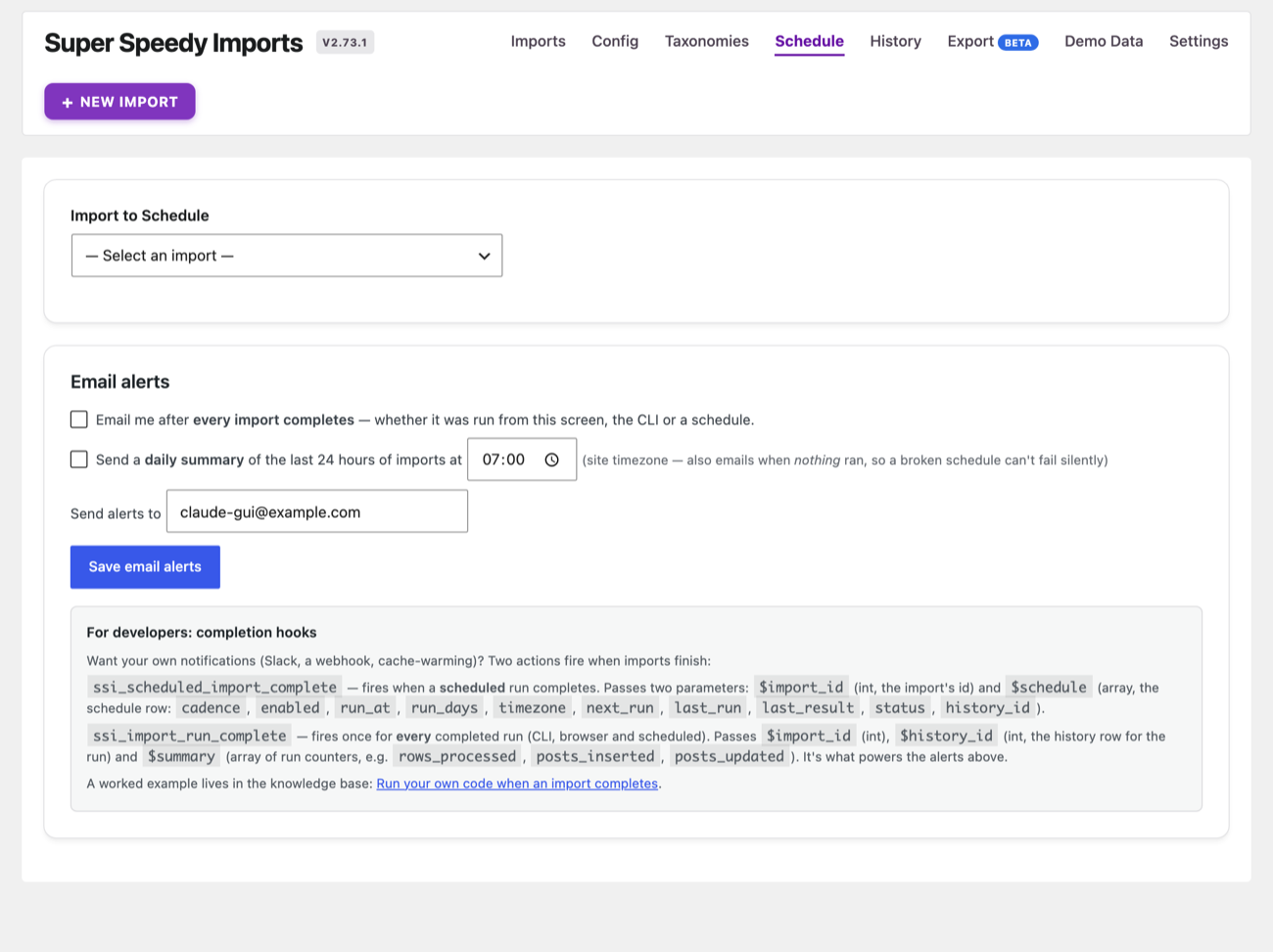
Email alerts
The Email alerts panel is available in every edition and covers every way an import runs, whether from the browser, the CLI or a schedule. There are two independent options:
- Email after every import completes. You get a message with the run’s counters and any row issues each time an import finishes.
- Daily summary. At a time you choose (in the site timezone), you get a digest of every run in the last 24 hours. Crucially, it also emails you when nothing ran, so a broken or mis-set schedule cannot fail silently in the background.
Alerts go to the address you set here, which defaults to the site admin email.
Custom notifications beyond email
If you want to trigger your own actions when an import finishes, such as a Slack message, a webhook, or warming a cache, the same completion hooks that power the email alerts are available to developers. See Run your own code when an import completes for the two actions involved and a worked example.

Comments