Undoing an import
An import that goes wrong on a live catalogue is stressful: wrong prices, mangled categories, thousands of products created that you now have to delete by hand. Super Speedy Imports has a built-in Undo that takes a snapshot before a run and lets you put everything back exactly as it was.
Undo is a Pro feature, and it is still in BETA. Test it on a staging copy of your site first, and keep a database backup for anything important. Do not treat it as your only rollback path until it is out of beta.
Turning it on
Undo is off by default and is enabled per import. Open your import in Super Speedy → Super Speedy Imports → Config, expand Additional Options, and tick Enable undo (BETA).
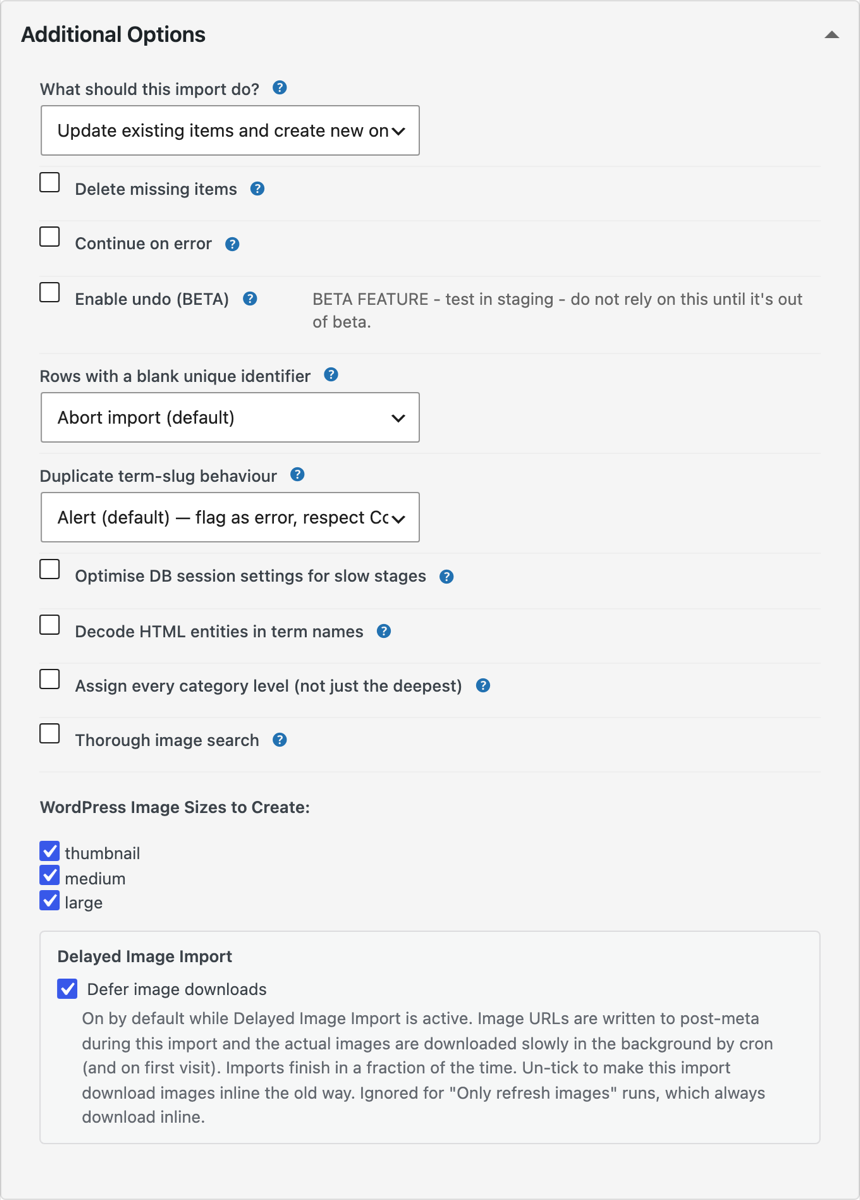
With the box ticked, Super Speedy Imports takes a snapshot of the target post type immediately before the import runs. If the snapshot cannot be taken for any reason, the import does not start: you get the real error rather than a run with no way back.
What a snapshot captures
A snapshot is a raw, per-table copy of exactly the rows your run can touch, taken at one consistent instant. For a WooCommerce product import that means the products (and their variations), all of their post meta, their term relationships, plus the shared taxonomy tables (categories, tags, attribute terms) and the global attribute definitions.
The copy is byte-for-byte and keeps every database ID. That matters: because the snapshot records the original IDs, a restore can rebuild the exact same links between products, variations, categories and attributes, rather than approximating them.
One snapshot is kept per import. Each run replaces the previous snapshot, so Undo always targets the most recent run of that import.
What a restore does
A restore is an exact-ID revert that runs inside a single database transaction, so it either fully applies or does nothing:
- Products the import created are deleted.
- Products the import changed are put back to their snapshot state, with the same IDs and the same links.
- Categories, tags and attributes the import added are rolled back.
- Media library entries for images the import uploaded are removed. The image files on disk are left in place, because two products might share the same file. This is safe: an orphaned file harms nothing, whereas deleting a shared file would.
Because it works from a raw copy rather than by re-importing, a restore cannot mangle serialised data or emoji, and it is far faster than any re-import approach.
When the snapshot is taken
The snapshot now runs on browser, scheduled and command-line imports. Earlier versions only recorded a snapshot on WP CLI runs, so undoing a run started from the admin screen or from the scheduler had nothing to restore. With Enable undo ticked, every run type records one.
Undoing from the command line
Restores are driven from WP-CLI. The commands are:
wp ssi snapshot <import_id>
wp ssi undo <import_id>
wp ssi undo-list <import_id>
wp ssi snapshot <import_id>takes a fresh snapshot for an import on demand, without running the import. Useful if you want a known-good restore point before doing something risky.wp ssi undo <import_id>restores the post type to the snapshot taken before that import last ran.wp ssi undo-list <import_id>shows whether an undo point exists for an import, when it was taken, and how many rows it holds.
An undo is only available if Enable undo was set when the import ran (or you took one manually with wp ssi snapshot).
Things to know before you rely on it
- It is BETA. Test on staging and keep a database backup.
- Snapshots use disk. They live under your uploads folder and add some IO to every run they are enabled on. Large catalogues mean large snapshots.
- Undo overwrites later edits. Any manual changes you made to that post type after the import are discarded by the restore, because the snapshot is the desired end state.
- It is scoped to the import’s post type. Undo does not cover users, or content of other post types your run did not touch.
- Image files stay on disk. Only their media library entries are removed, as described above.
For choosing what a run should update in the first place, see Partial imports: what gets updated and what stays. For scheduled runs, see Scheduling imports with cron.

Comments