How to use Unison instead of GlusterFS for faster file replication
GlusterFS is great if you don’t have a lot of files in your folder, but it really slows down when you have a highly populated uploads folder. This is probably expected and normal for folks running a WordPress cluster, unless they’re using S3 or similar for upload storage.
GlusterFS is largely slow because it guarantees that the file exists on all nodes, so if you read a file, it’s off checking the other servers to confirm it has not been deleted. That’s unnecessary.
Below you’ll find a guide to using Unison for file replication. Unison has higher latency, which means it could take a minute or two before your files make it to the other servers.
GlusterFS checks every other node on every read to guarantee a file still exists, which crawls once your uploads folder is large. Unison just replicates changes on a short delay, so reads stay local and fast. The trade-off is a minute or two of replication latency you need to design around.
Unison latency problem for WordPress clusters
Given that we’re replicating the database and the database typically will replicate in seconds, that means some issues could arise if we’re not careful:
- If a new plugin is installed, WordPress may de-activate the plugin on other nodes when it spots that the files are missing. To get around this, WAIT 2 minutes after adding a plugin before you activate it. (I am building a cluster-support plugin to help here.)
- If images are uploaded to a product or blog, those images will take about a minute to replicate. You should wait a minute after uploading your featured images before you actually publish your article. (I will add some tooling to the cluster-support plugin to cover this too.)
- Any file-based caching needs to be avoided. We do not want to overload Unison by replicating cache files. Use Redis or Memcached instead for object-caching and use Nginx for page-caching.
If the replication latency on uploaded images is a problem for you, consider not replicating images at all. Serving them off-server from a CDN, S3 bucket or supplier feed removes them from the cluster entirely, so there is nothing for Unison to copy between nodes.
With that in mind, here’s the guide to getting Unison set up.
Install Unison for file replication
This Unison setup uses a star schema for file replication, with node 1 at the centre of the star.
node 1 <--> node 2 file replication
node 1 <--> node 3 file replication
That means a file edit on node 3 will replicate to node 1 and then to node 2. A file edit on node 1 will replicate out directly to node 2 and 3. Because of this, it makes sense to make node 1 our wp-admin server where we upload plugin files. Because of this star schema for file replication, node 1 is your most important node. If it goes down, or you switch it off, file replication will be paused until you bring it back online.
On each node, install unison:
apt-get -y install unison openssh-serverThis will allow us to run the replication commands later once we have installed the WordPress files.
Configure SSH so nodes can connect to each other
SSH access is required for Unison to be able to replicate files. If you want more background on key-based access, see my guide on using SSH keys to access your WordPress servers. Run the following on all 3 nodes:
ssh-keygenHit enter 3 times to accept 3 defaults inc 2 blank passwords for the keyfile so it works non-interactively. Now, grab a copy of the id_rsa.pub files for each node and paste them into the other 2 nodes authorized_keys file. Find the public keys of each node by running this command:
cat /root/.ssh/id_rsa.pubThen paste those public keys into the authorized_keys file of the other 2 nodes:
vi /root/.ssh/authorized_keysReplicate the WordPress files using Unison
Now that we have ssh authentication, we can set up Unison to replicate the website files to node 2 and 3. Run the following commands on node 1 of your cluster:
unison /var/www/wpicluster ssh://10.130.47.4//var/www/wpicluster -owner -group
unison /var/www/wpicluster ssh://10.130.47.11//var/www/wpicluster -owner -group
Note: replace the IP addresses with your own and the folder names with your own.
These commands will take a little while to run for the first run, but then you’ll have efficient and quick file replication in your cluster.
Note: You’ll probably see a message ‘Reconciling changes’ dir —-> [f] – if you see this, hit ENTER. Then it will ask you if you want to proceed, hit y then ENTER.
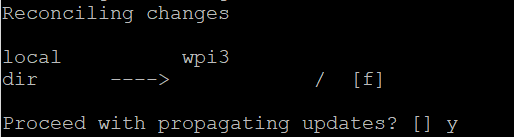
You also need to set up a crontab/cron job for Unison. Run the following command:
crontab -eChoose whatever editor you prefer when it asks you then append the following to the end of the file:
* * * * * unison -batch /var/www/wpicluster ssh://10.130.47.4//var/www/wpicluster &> /dev/null
* * * * * unison -batch /var/www/wpicluster ssh://10.130.47.11//var/www/wpicluster &> /dev/null
Change IP addresses and folder locations. Use internal IP addresses so traffic goes over the faster internal network card.
Change Nginx rules to force all wp-admin traffic to node 1
Modify your Nginx Rule to force all wp-admin traffic to node 1. We want to do this so any files uploaded will go to node 1 then outwards from the star schema.
location ~ /wp-(admin/|login.phpb|cron.php) {
 proxy_pass http://clusterwpadmin;
 proxy_set_header X-Forwarded-Host $host;
 proxy_set_header X-Forwarded-Server $host;
 proxy_set_header X-Forwarded-For $proxy_add_x_forwarded_for;
 proxy_set_header X-Forwarded-Proto $scheme;
 proxy_set_header X-Real-IP $remote_addr;
 proxy_set_header Host $host;
}
That’s it. It’s way faster than glusterfs, just a couple of caveats at the top of this article you have to be aware of.
You should test it out – the way I did it was to create a copy of the WordPress folder still while GlusterFS was running and then used Unison on that.
Once you’re happy with your new star-schema file replication, you can remove GlusterFS:
apt-get remove glusterfs-serverLet me know any questions.


Hi David,
Thanks for this explanation.
I have a question for you.
In the article you mentioned about you are working in a plugin ("I’m making a cluster-support plugin to aid here")
That plugin is ready?
Thk for your answer ..
Tip.