Ajax Search
Ajax search shows results the moment your users start typing, without waiting for a page reload. Around half of searchers rely on these instant suggestions, while the rest look at their keyboard as they type and then hit enter. Catering for both is one of the quickest ways to lift conversions on a busy WooCommerce store.
Super Speedy Search runs its ajax lookups as direct SQL against its own indexes, so suggestions stay fast even on stores with hundreds of thousands of products, where the default WordPress search would crawl.
How Super Speedy Search ajax search looks
Here are the ajax search results running on the Woodmart theme:
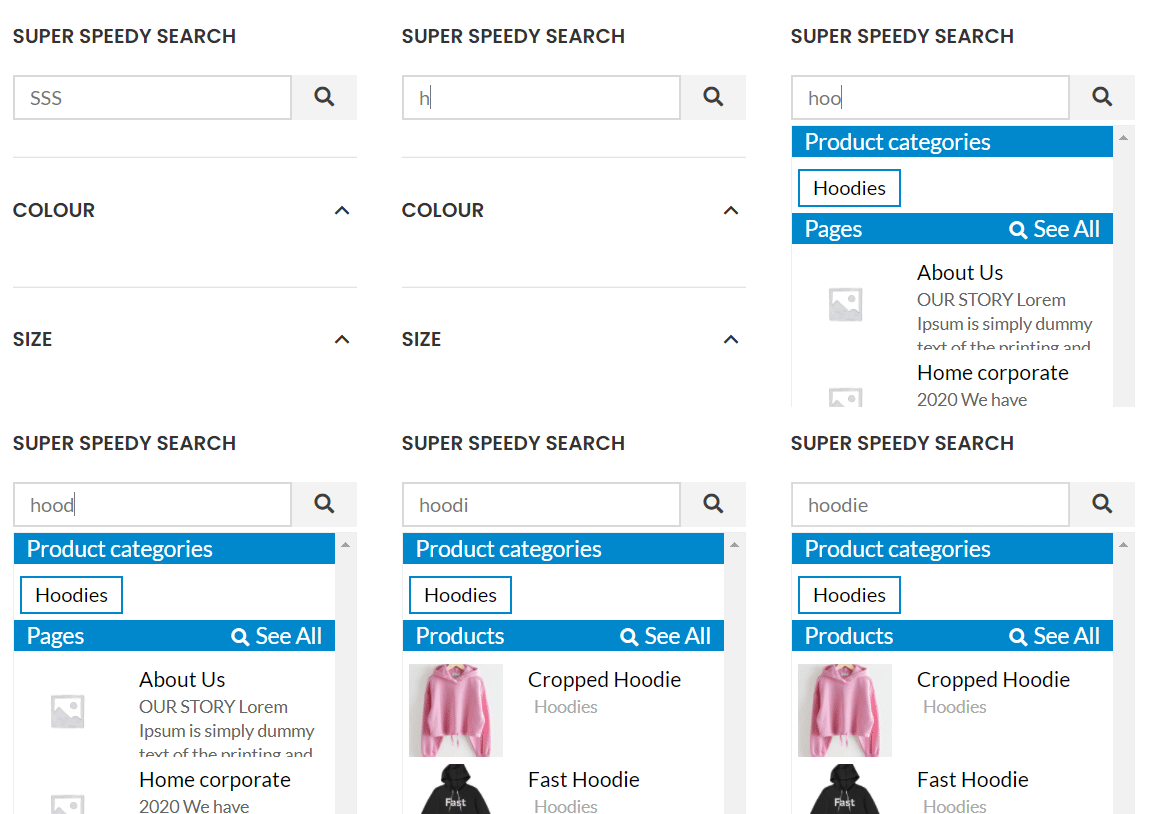
And the same feature on the Houzez property theme:

Ajax Post Types
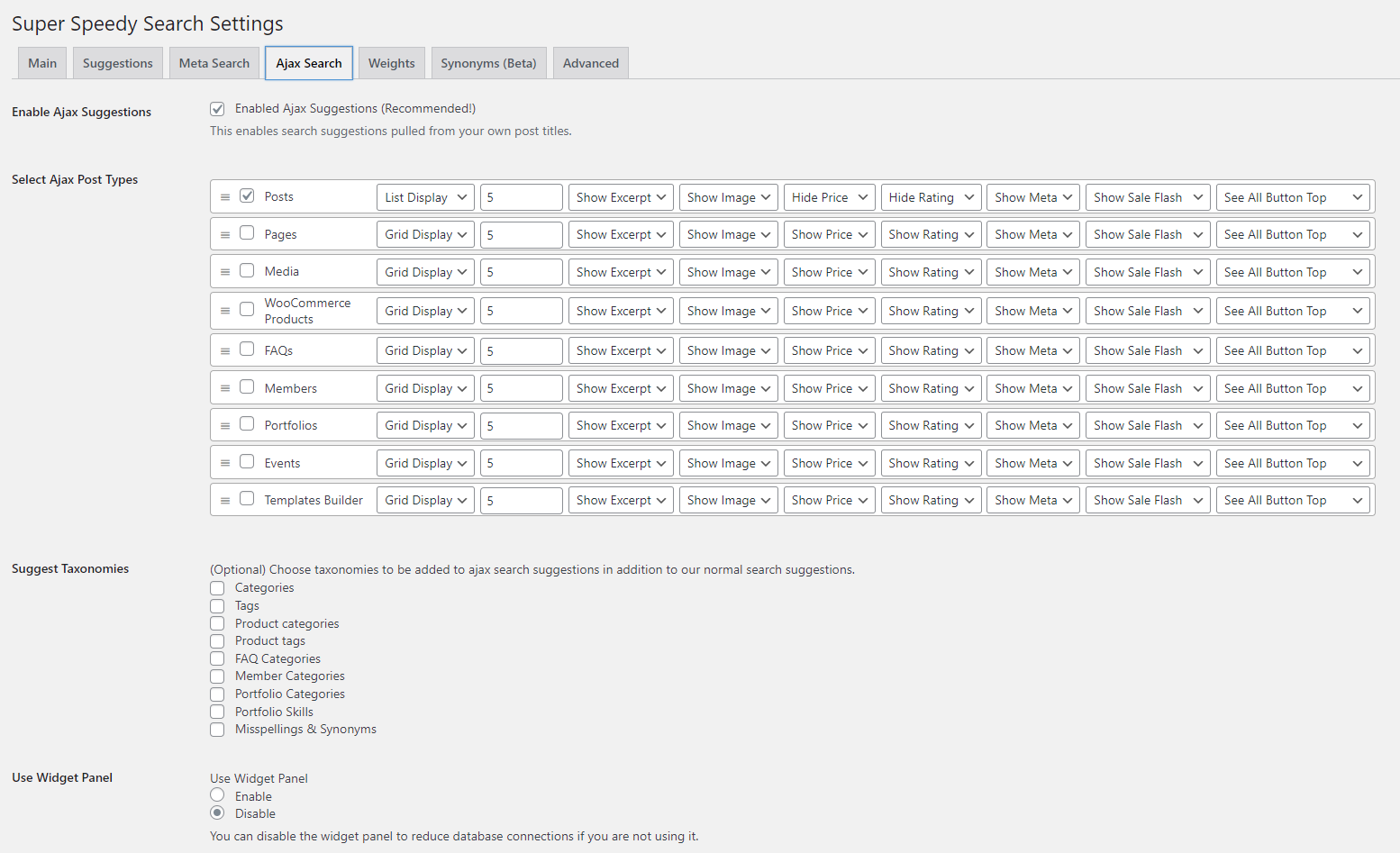
There is one section in the ajax search panel per post type that you have enabled. To enable different post types, visit Settings > Super Speedy Search > Ajax Search, and select the Ajax Post Types and Taxonomies you wish to appear.
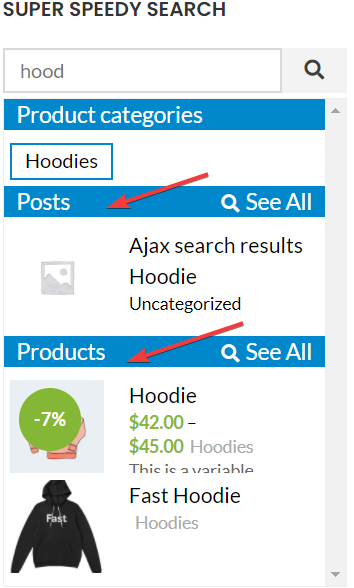
If you enable both posts and products, and search for something that exists in both, then you will see the results grouped by post type like this:
On large catalogues the speed of ajax search depends on your database being properly indexed. If suggestions feel sluggish it is usually a sign of a wider database bottleneck, so it is worth reading how to identify and fix scalability issues on your WordPress website.


Comments