Automatic column mapping
Mapping a supplier CSV to WooCommerce by hand is tedious: you match each column to the right field, work out which one is the SKU, spot the image URLs, and hope you have not missed anything. Super Speedy Imports does most of that for you the moment you load a file. This is a Pro feature.
How it works
When you load a CSV, the auto-mapper works in two passes and only maps a column when both agree.
First it reads your column names against a large alias list. It knows that "Stock Keeping Unit", "Item number" and "Model" all mean SKU, that "Image src" and "Main image" mean the featured image, that "Availability" means stock status, and so on. Matching is tolerant of case, spaces, dashes and underscores, so "Product_Category" and "product category" both land.
Then it reads the actual data in the first few rows of each column and works out what the values really are: prices, GTIN, EAN and UPC codes (checked against their check digit), stock counts, stock statuses, image URLs, weights, slugs, and category paths with whatever separator they use. This second pass does two jobs. It confirms a name match (a column called "price" that is full of URLs is not a price, so the match is vetoed), and it proposes a mapping for columns whose name matched nothing but whose data is unmistakable.
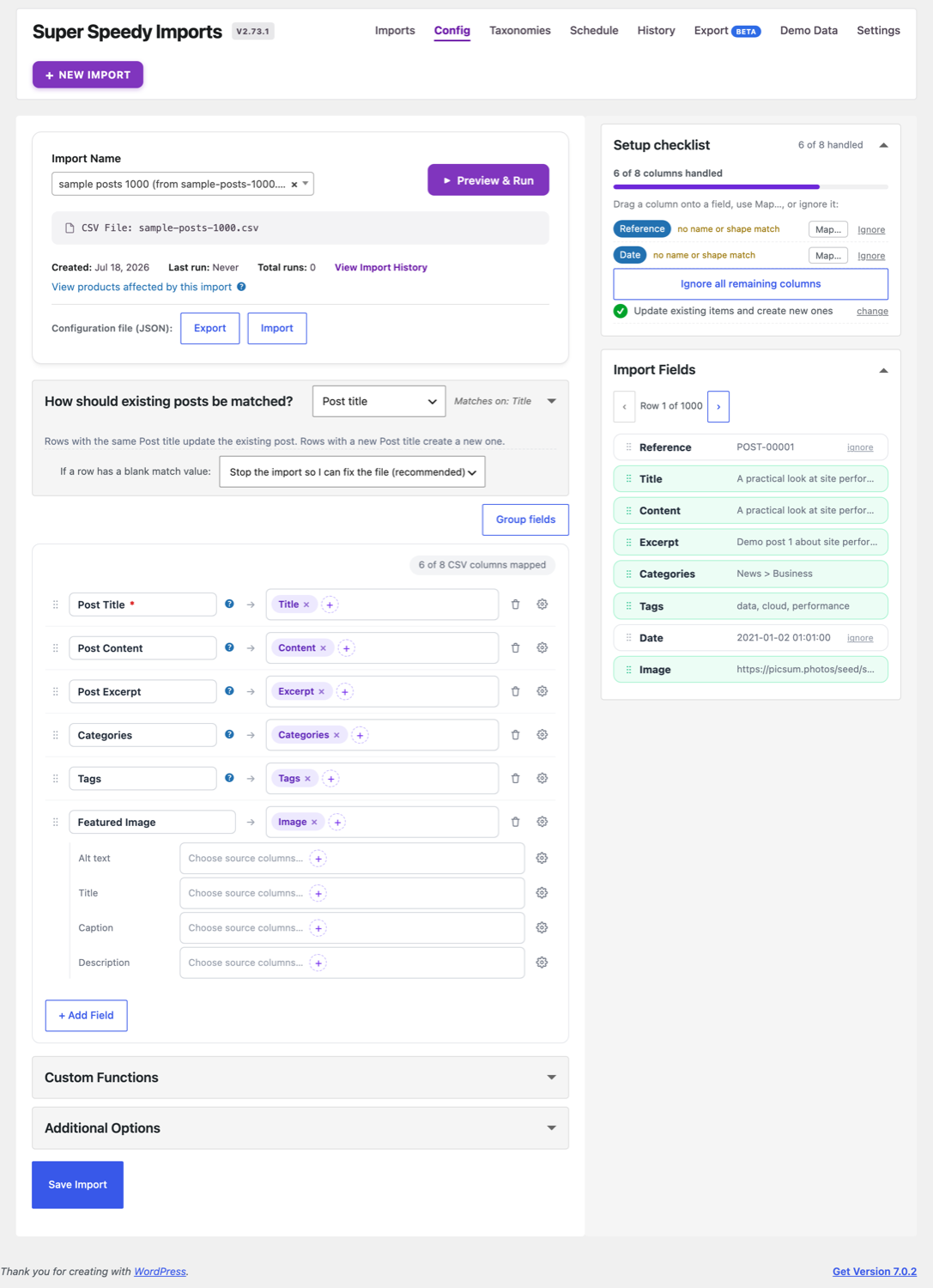
Choosing how items are matched
Every import needs one field that identifies a row uniquely, so a re-import updates the right product instead of creating a duplicate. The auto-mapper picks the best available match key for you, in order of reliability: a clean SKU first, then the slug, then a GTIN, and only the product title as a last resort. A title is the weakest choice, because renaming a product would break future matching, so if it has to fall back to the title it says so and suggests you add a SKU column.
Variations and parent linkage
The auto-mapper also detects whether your file contains variable products. If it finds a product-type column with variation rows, or a parent-reference column (values like "Parent SKU" or "Variation of") that resolve against the SKU column, it switches the import to the mixed parent-and-variation type and sets up the parent linkage automatically. If a parent-reference column is present but its values do not resolve, it leaves it unmapped and tells you why, rather than silently producing unlinked variations.
Suggestions you accept or dismiss
Columns the mapper is confident about are mapped outright. Columns it nearly matched, or could not decide, are surfaced on the mapping screen as suggestions. A near miss appears as a dashed "ghost" row (for example "Colour to Product colour?") with Accept and Dismiss buttons, so confirming or rejecting it is one click rather than a hunt through the field picker. It also flags ambiguities worth your eye, such as two price-shaped columns it cannot tell apart, so you can map the regular and sale price yourself.
Anything the mapper leaves unmapped is left for you to handle on the mapping screen. Nothing is guessed into a field on a weak match.
Importing a CSV that Super Speedy Imports exported
If you feed the auto-mapper a CSV that Super Speedy Imports itself exported, it recognises its own naming and configures the whole import end to end: every field mapping, the match key, taxonomies with their full paths, and variations. This makes moving a catalogue from one site to another close to one click. Export on the source site, import the file on the target site, and run it.
Importing from a URL
You do not have to download the file first. On the import screen you can paste a link to a CSV and Super Speedy Imports fetches it server-side, applying the same safety checks as an uploaded file, and then auto-configures the import from it. There is no size limit of ours: your server’s PHP limits apply, exactly as they would for an upload.
To see everything on the mapping screen after auto-mapping has done its work, read A tour of the import mapping screen.

Comments