Trying the demo and sample imports
You do not need a CSV of your own to see how Super Speedy Imports works. The plugin ships with a quick sample import you can run in one click, and a Demo Data tab that downloads larger, ready-made imports on demand. Both set everything up for you so you can watch a real import run start to finish.
The quick sample import
On the right-hand side of the Imports screen there is a Load sample imports button. Clicking it sets up ready-to-run sample imports in one step. It registers the product taxonomies the samples use (categories, brands and colours), copies a sample CSV into your uploads folder, and creates the import configuration.
Nothing is imported at this point. You then open one of the samples and press Run Now to watch it import a set of demo products live, with a progress log, so you get a feel for the whole flow before pointing the plugin at your own data.
The exact samples depend on your edition. Pro includes a 1,000-product simple import and a more comprehensive import. The Lite edition includes the simple import. Both are bundled inside the plugin, so they are available offline.
The Demo Data tab
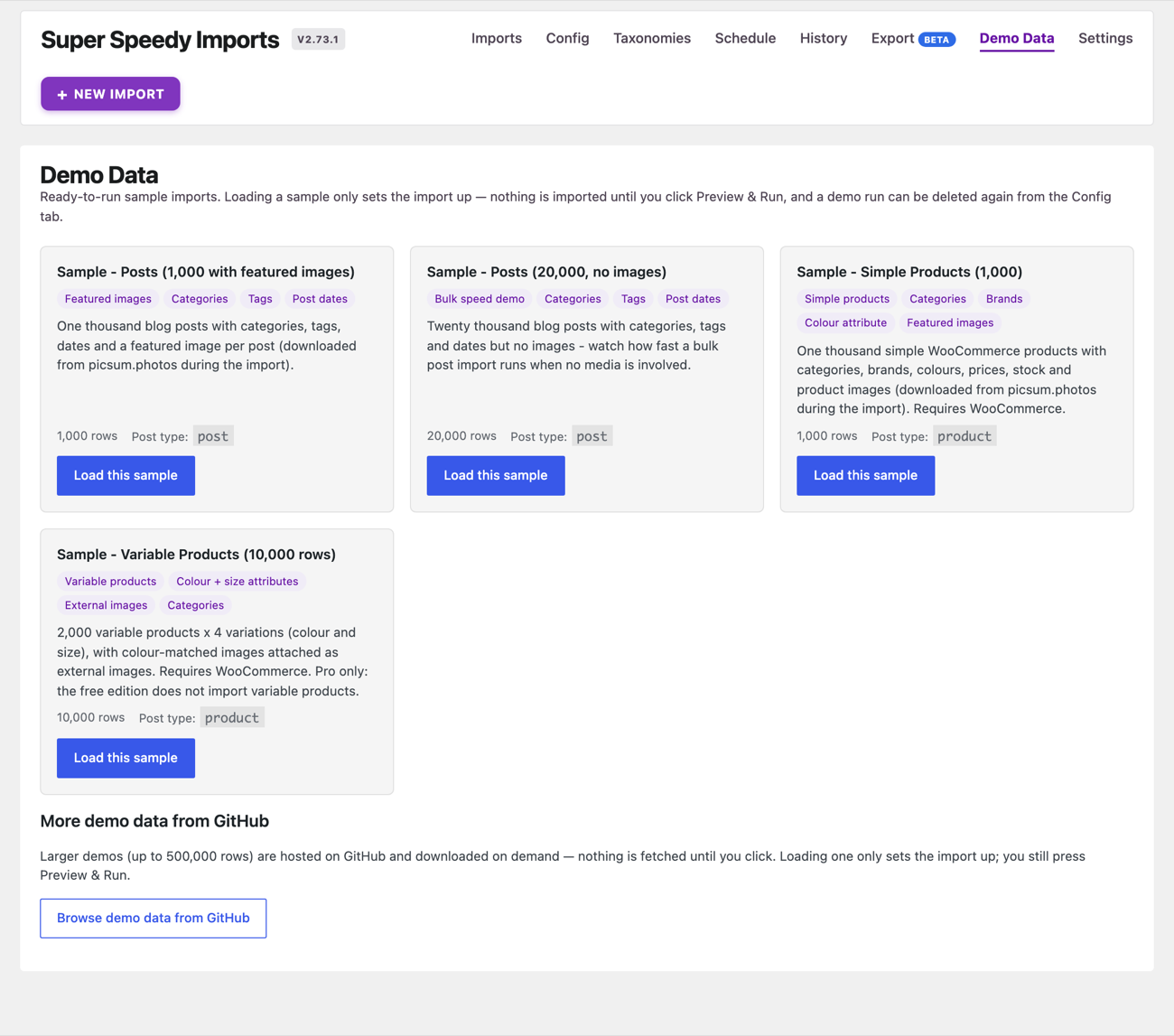
For larger trials, the Demo Data tab downloads bigger sample imports on demand rather than bundling them in the plugin. Choose Browse demo data from GitHub and it lists the available demos, for example a 100,000-post demo, a 100,000 simple-product demo and a 500,000-row variable-product demo (the variable-product demo is Pro).
Picking a demo downloads its CSV and its configuration, verifies each download against a checksum, and sets the import up ready for Run Now. The verification step means you can trust that the file arrived intact before you run it.
A large server-side download can time out on shared hosting. To cover that, each demo in the list also carries direct-download links. You can fetch the CSV and config yourself and set the import up manually, avoiding the timeout entirely.
Once you have run a sample and want to import your own catalogue, see Quick start: importing products and the Mapping screen walkthrough. To understand what the run and completion screens are telling you, see Reading the run and completion screens.

Comments